Most business software arrives the same way: a new tool, a new login, a new place where your data lives, and one more set of permissions that nobody keeps in sync with the rest. After a year, a small company has a dozen of them and no clear answer to a simple question: who can see what?
Apps in SweetHive work the other way around. They do not sit next to your workspace, they live inside it, in the context where the work happens. This guide explains how that works, how to choose and install an app, and how plans and bundles are billed. The full catalog is on the SweetHive Store.
An app lives in a context
In SweetHive your organization is a hive, and work is organized into contexts: departments, projects, clients. Groups decide who sees each context. An app is installed into one of those contexts, for example SweetTreasury in the Administration context, or ScuolaBus in the context of the school that runs the bus service.
That choice is the whole point. When someone opens the app, it works with that person's view of that context: the context itself and the sub-contexts their groups can reach, nothing more. The access the app receives is tied to the person and to the context, and it expires after an hour. An admin can also limit an installation to specific groups, so that, for example, only the accounting group sees the treasury app.
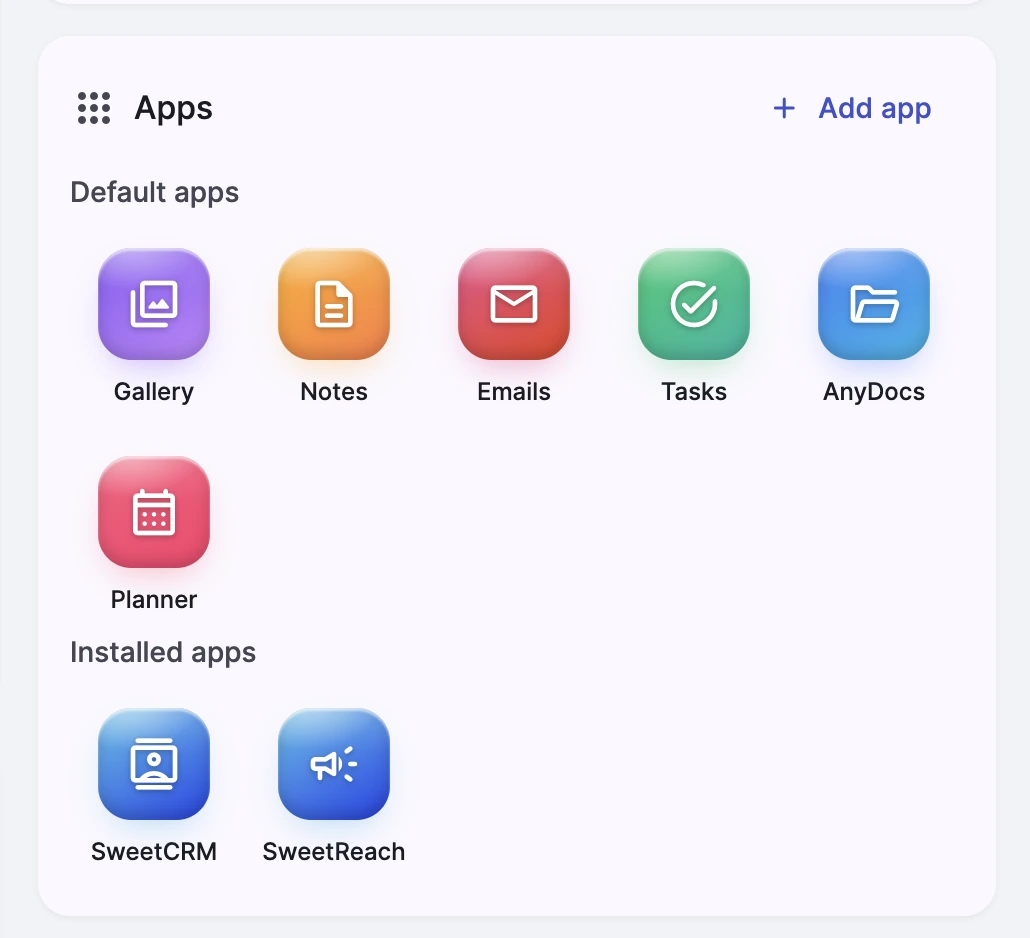
The result is that you do not manage a second set of permissions for every tool. The structure you already have decides what each app can see.
What is in the Store today
The catalog is organized in four areas:
- Admin and finance: SweetTreasury for cash and bank, SweetControl for management control, SweetTimetable for timesheets, Scadenze Studio for accounting firms, SweetISO for quality management.
- Sales and marketing: SweetCRM for contacts, offers and orders, and SweetReach for channels, editorial plans, articles and campaigns.
- Schools: seven apps for the daily life of a school, from ScuolaBus and the canteen to trips, maintenance, the library, purchase requests and permissions.
- 3D and heritage: 3D Machines, with the AerariumChain viewer and animations, priced per machine.
Some apps have a public monthly and yearly price; others are configured around your data and processes and are quoted after a short demo. The Store shows which is which.
Installing an app, step by step
- Pick the context. Decide where the app belongs: the root of the hive for something the whole organization uses, or a first-level context for something that belongs to one department or project.
- Add it from the Apps card. Open the context, go to its Apps card and choose the app, or start from the store inside SweetHive and pick the hive and the context. Only hive admins can install apps.
- Decide who uses it. By default the app follows the context's groups. If only some groups should use it, limit the installation to them.
- Open it from the hub. Installed apps appear in the context and in the hub of the hive, so people find them where they already work.
Plans, bundles and invoices
Every app with a public price has its own plan, monthly or yearly. The yearly plan costs ten monthly fees, so two months are free. Prices exclude VAT and plans renew automatically; activating a paid plan is up to the owner or an admin of the organization.
Apps run on top of an organization plan (Team, Business or Enterprise), which sets how many people, guests, storage and agents you have. If you buy an app on its own, it is billed as a separate subscription next to your organization plan.
If you want everything together, ask for a bundle. A bundle puts the organization plan and the apps on one subscription and one invoice, with a single renewal date. Our team prepares it for you, and the owner of the organization activates it with one click. The Store suggests ready-made combinations, such as the School suite or the Admin suite, and you can request your own.
New organizations can try SweetHive free for 14 days on their first plan. Bundles are activated directly, without a trial.
When the app you need does not exist
Every app in the Store started from a real process in a real organization. If yours is missing, there are two ways forward. Developers can register their own app in SweetHive under Developer, then Apps: it is reviewed by our team before it is listed in the Store, and the SDK is available in early access. Or tell us about the process and we can build it with you, scoped to your contexts from day one.
A short checklist
- Start from the work, not the tool. Which process takes too long today, and in which context does it happen?
- Install it where the work lives. A department app in the department context, a project app in the project context.
- Keep the audience narrow. Limit the installation to the groups that need it; you can widen it later.
- Bundle when you are sure. Try apps one by one, then ask for a bundle to get one subscription and one invoice.
Browse the catalog and the bundles on the SweetHive Store, or create your hive and install your first app in a context.